What Is CLTV? Formula, GTM Tracking and GA4 Reporting
CLTV measures total revenue or profit a customer generates across the relationship. Formulas, examples and common mistakes for business and SaaS teams.
Zunnun Ahmed · Published · 8 min read
Customer lifetime value (CLTV) measures the total revenue a customer generates across all purchases on your site. Business, SaaS and ecommerce teams track this metric in Google Tag Manager using a Custom HTML tag that accumulates order values in the browser across sessions.
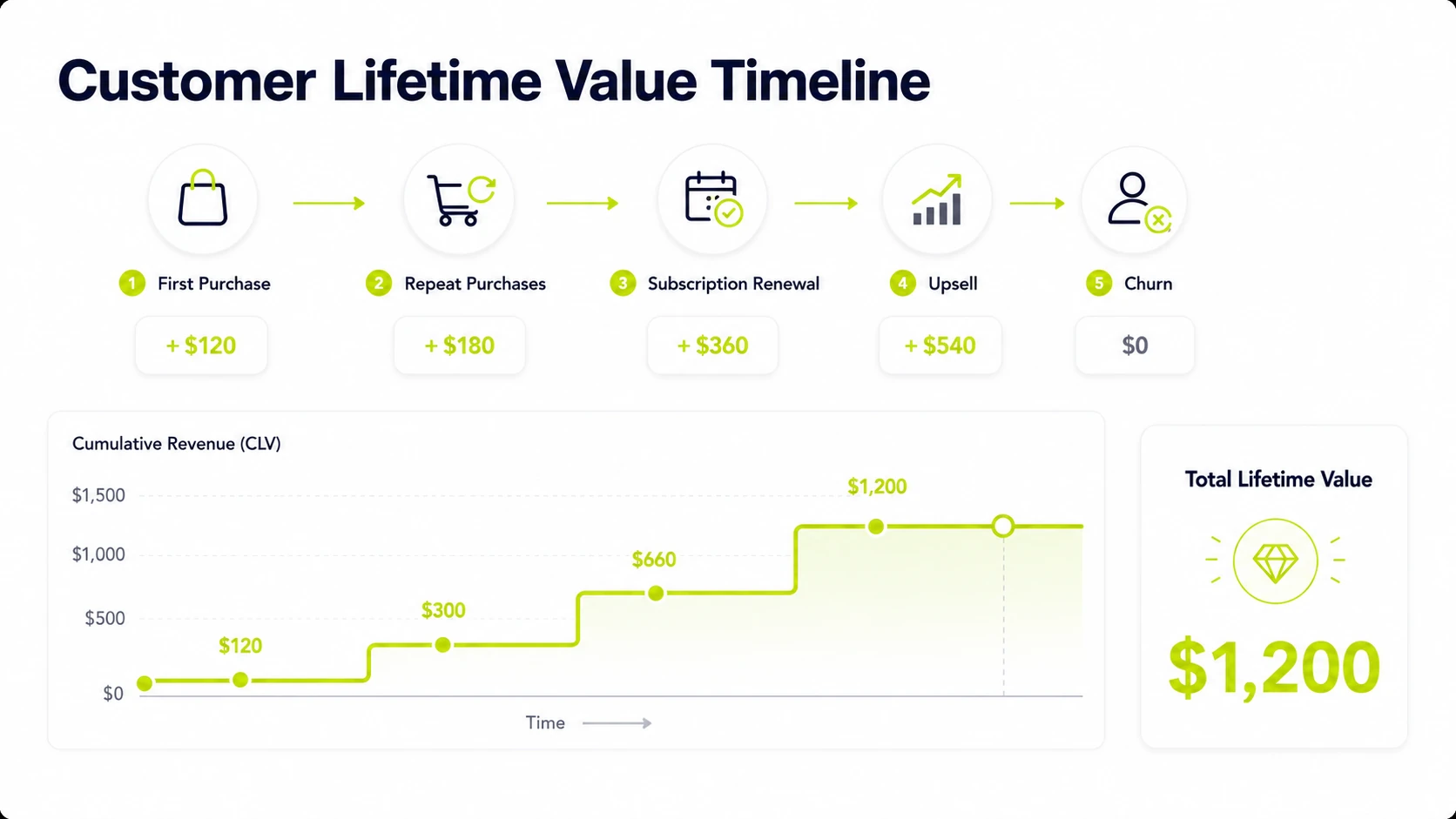
What Is Customer Lifetime Value?
Table of Contents
CLTV is the cumulative revenue a single customer produces from their first purchase to their last. A customer who places three orders of $100, $150 and $200 has a lifetime value of $450.
CLV and LTV refer to the same metric across business literature. Revenue-based CLTV sums all order values. Profit-based CLTV applies gross margin to each transaction before summing. The GTM localStorage method in this guide tracks revenue-based CLTV and stores the running total in the browser on each confirmed purchase.
Why Does Customer Lifetime Value Matter for Business Decisions?
CLTV identifies which acquisition channels bring high-value customers across multiple purchases, not just first-time buyers. A paid channel that drives $50 first orders but $800 lifetime revenue outperforms a channel that drives $120 first orders but $200 lifetime revenue.
- Acquisition spend: CLTV sets the ceiling for what paid media, sales and partner costs are worth per customer.
- Channel comparison: lifetime revenue by source or medium shows which channels retain customers beyond the first transaction.
- Audience targeting: GA4 audiences built on CLTV tiers separate low-value and high-value customers for bid adjustments in Google Ads.
- Retention investment: customer lifespan data shows whether loyalty programs and re-engagement campaigns add measurable revenue.
- CAC payback: CLTV compared with customer acquisition cost confirms whether growth economics produce profit.
How Is Customer Lifetime Value Calculated?
Revenue-based CLTV equals the sum of all confirmed order values from a single customer. The GTM localStorage method adds each transaction to a running total on every purchase confirmation page.
|
Formula type |
Formula |
Best fit |
|---|---|---|
|
Running sum |
Order 1 + Order 2 + Order 3 |
Ecommerce with GTM localStorage |
|
AOV model |
Average order value × purchase frequency × customer lifespan |
Retail and repeat-purchase ecommerce |
|
Churn model |
Monthly revenue × gross margin ÷ monthly churn rate |
SaaS and subscription businesses |
The running sum formula produces the most accurate result for ecommerce because it uses actual transaction values rather than averages. The AOV and churn models estimate future value when historical data is incomplete.
What Is an Example of Customer Lifetime Value?
A customer completes four purchases: $80, $120, $95 and $150. Revenue-based CLTV equals $445. At 40% gross margin, profit-based CLTV equals $178.
With the GTM localStorage setup, each purchase fires the Custom HTML tag. After the fourth order the browser holds $445 in localStorage under the key total_purchase_value. The Custom JavaScript variable reads that value and sends $445 to GA4 as the user_cltv parameter on the next purchase event.
What Mistakes Create Bad CLTV Decisions?
Bad CLTV decisions come from mixing revenue with profit, ignoring which device a customer used or comparing lifetime value across business models that use different formulas.
- Treating revenue as profit. A $445 revenue-based CLTV at 40% margin produces $178 in profit. Reporting $445 as economic value overstates the contribution by $267.
- Ignoring device switching. The localStorage method stores totals per browser. A customer who buys on mobile then desktop builds two separate totals. Blending them without accounting for this produces inflated customer counts.
- Comparing segments on different formulas. A SaaS churn-model CLTV and an ecommerce running-sum CLTV measure different things. Comparing them directly produces no actionable signal.
- Using a blended average instead of cohort data. An average CLTV across all customers hides that 10% of customers produce 60% of revenue. Cohort-level data by acquisition channel or first purchase date produces more specific decisions.
- Skipping GA4 registration. Sending user_cltv as an event parameter without registering it in GA4 Admin means the value fires in the data stream but never appears in reports or Explore.
How Does the GTM Custom HTML Setup Work?
Two GTM components send CLTV to GA4: a Custom HTML tag that stores a running purchase total in localStorage on every confirmed purchase and a Custom JavaScript variable that reads that total back and passes it to any tag in the container.
Step 1: Create the Custom HTML Tag
This tag fires on every purchase confirmation and adds the current order value to the running CLTV total stored in the browser.
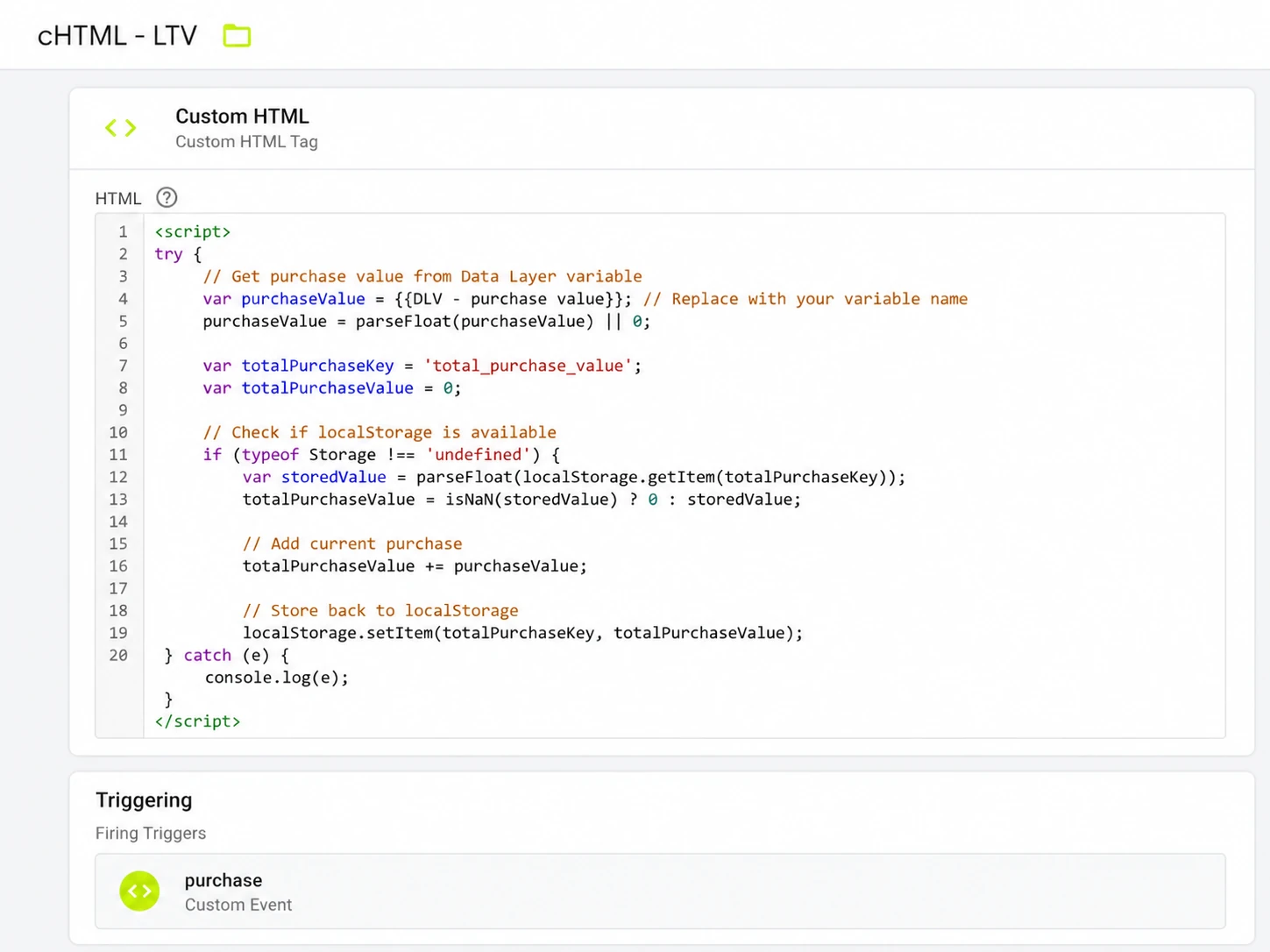
- In GTM, go to Tags > New.
- Choose Custom HTML as the tag type.
- Paste this code:
<script>
try {
  var purchaseValue = {{dlv - purchase value}};
  purchaseValue = parseFloat(purchaseValue) || 0;

  var key = "total_purchase_value";
  if (typeof Storage !== "undefined") {
    var stored = parseFloat(localStorage.getItem(key));
    var running = isNaN(stored) ? 0 : stored;
    running += purchaseValue;
    localStorage.setItem(key, running);
  }
} catch (e) {
  console.warn("CLTV tag error:", e);
}
</script>
- Replace {{dlv - purchase value}} with your existing purchase value Data Layer Variable name.
- Under Triggering, select your purchase confirmation trigger.
- Name the tag cHTML - Store CLTV and save.
Step 2: Create the Custom JavaScript Variable
This variable reads the running CLTV total from localStorage and returns it to any tag that calls it.
- In GTM, go to Variables > New.
- Choose Custom JavaScript as the variable type.
- Paste this code:
- Name the variable CJS - Lifetime Value and save.
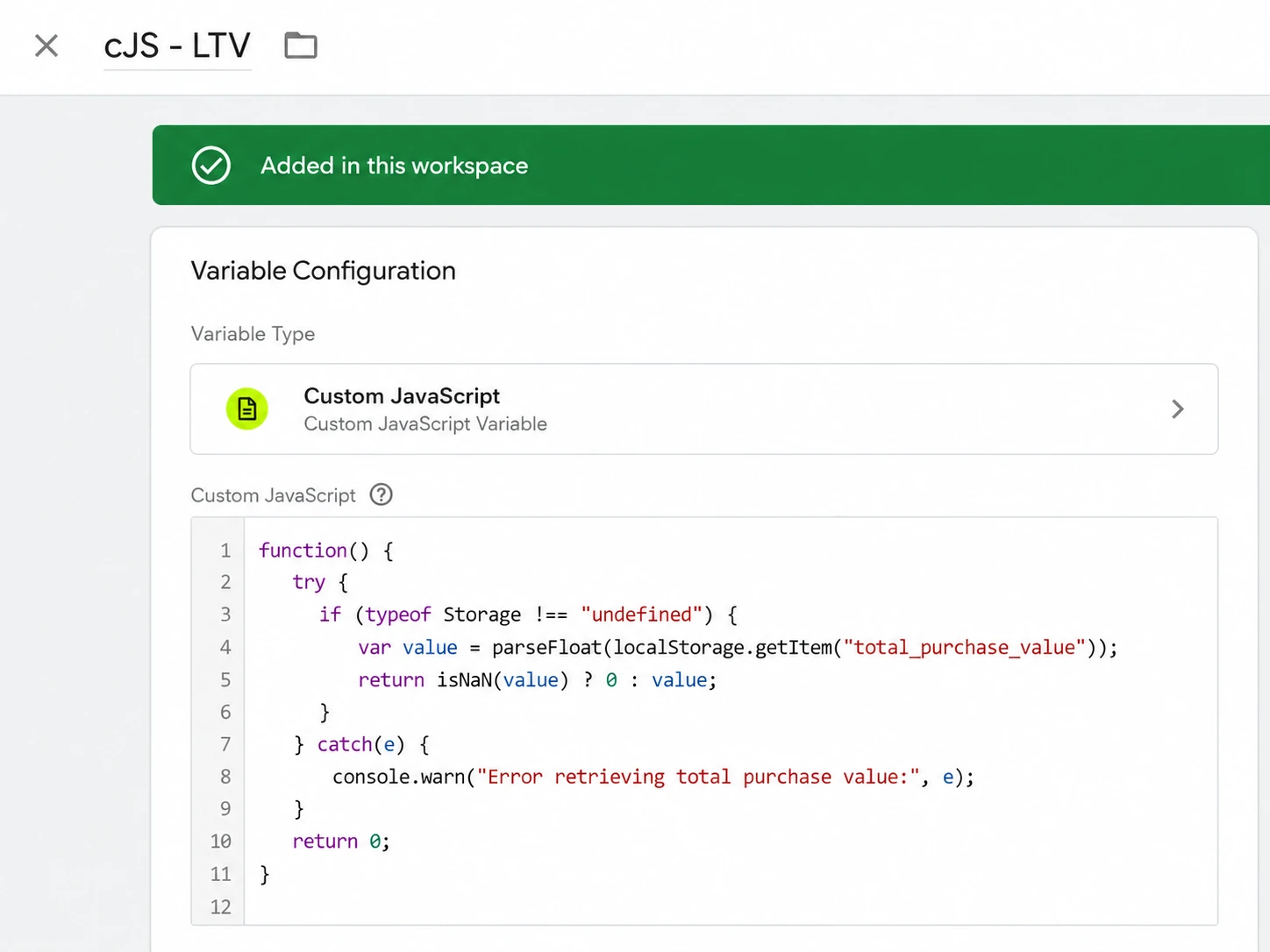
function() {
  try {
    if (typeof Storage !== "undefined") {
      var value = parseFloat(localStorage.getItem("total_purchase_value"));
      return isNaN(value) ? 0 : value;
    }
  } catch (e) {
    console.warn("CLTV variable error:", e);
  }
  return 0;
}
Step 3: Send CLTV to GA4
Add {{CJS - Lifetime Value}} as an event parameter on the GA4 purchase event tag so the cumulative total fires with each confirmed transaction.
- Open your existing GA4 purchase event tag in GTM.
- Under Event Parameters, add a new row.
- Set Parameter Name to user_cltv.
- Set Value to {{CJS - Lifetime Value}}.
- Save and publish the container.
The same variable sends CLTV to Google Ads and Meta. For Google Ads, set the conversion value field to {{CJS - Lifetime Value}}. For Meta CAPI via GTM server-side, pass it as the value parameter on the Purchase event.
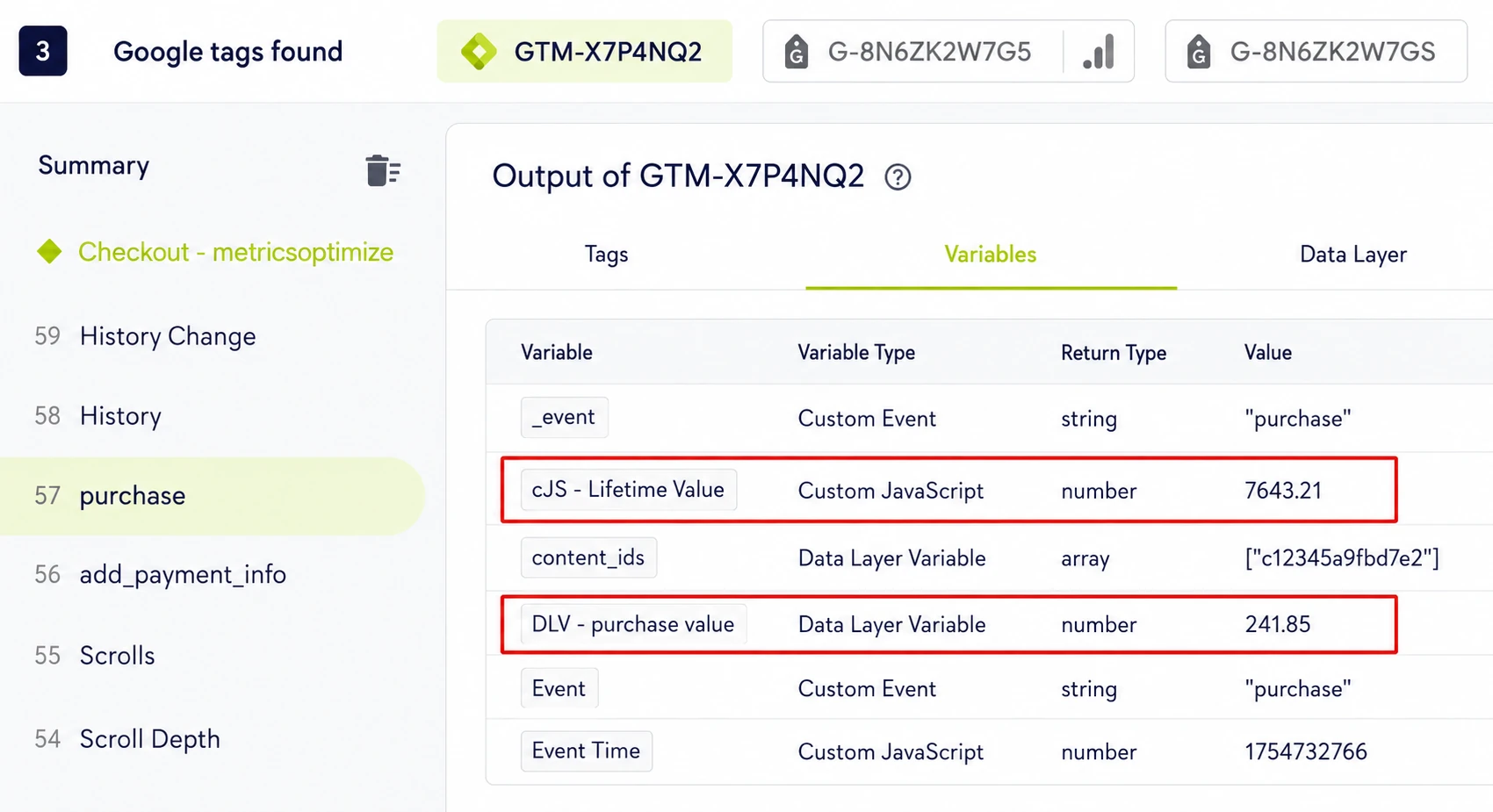
The metric appears in GA4 Explore and standard reports within 24-48 hours. Use it in the User Lifetime exploration to compare cumulative revenue by acquisition channel, first purchase date or device category.
What Are the Limits of This Setup?
The localStorage method stores CLTV in the browser, not a server or database. Each limit below affects a specific use case and has a defined scope.
Does This Setup Track CLTV Across Multiple Devices?
No. localStorage is scoped to a single browser on a single device. A customer who purchases on a mobile phone and later on a desktop builds two separate running totals in two separate browsers. The totals do not merge unless a server-side identity resolution system links the two sessions. For single-device website tracking flows, the localStorage method is sufficient.
Does localStorage Survive When a User Clears Browser Data?
No. Clearing browser data, cookies or site storage deletes the localStorage entry. The running total resets to zero on the next purchase. The historical transactions recorded in GA4 before the reset remain in the data stream but the browser-side accumulator starts over.
Does This Setup Work in Private or Incognito Browsing?
No. Incognito and private browsing sessions do not persist localStorage after the session closes. A purchase made in private browsing fires the Custom HTML tag and stores a value for that session only. The total clears when the private window closes.
Does This Setup Track Gross Margin or Net Profit?
No. The Custom HTML tag reads the order value from the data layer and stores the revenue figure. Gross margin, shipping costs, returns and discounts are not factored in. Profit-based CLTV requires a post-processing step in BigQuery or a BI tool where margin data is available. The digital analytics section covers which revenue attributes GA4 tracks natively.
Does This Setup Work Without a GA4 Purchase Event Configured?
No. The Custom HTML tag fires on a purchase confirmation trigger. If no purchase event or thank-you page trigger exists in the GTM container, the tag has no event to attach to. Configure a purchase trigger using a GA4 recommended purchase event or a pageview trigger on the order confirmation URL before deploying the CLTV tag. The metrics tracking step covers GA4 custom metric registration.
Does an Ad Blocker or Browser Privacy Setting Break This Setup?
Partially. Ad blockers that block GTM container scripts prevent the Custom HTML tag from firing on the purchase page, which means the localStorage total does not update for that session. Browsers with strict privacy settings such as Safari ITP do not block localStorage directly but may restrict cross-site data access in certain embed contexts. Standard first-party checkout flows on the same domain are not affected.
Does This Setup Work for Subscription or Recurring Billing Models?
Partially. The setup works when the recurring charge fires a purchase confirmation page that GTM loads. For server-side subscription renewals that process without a browser session — such as a monthly SaaS charge billed in the background — the Custom HTML tag does not fire because no page loads. Client-side CLTV accumulation only captures purchases that occur in an active browser session with GTM running.

Written by
Zunnun Ahmed
Digital analytics consultant helping businesses make data-driven decisions. Specializing in GA4, GTM, conversion tracking, and marketing attribution to turn messy data into profitable growth strategies. Semantic SEO expert in the Koray Tuğberk Gübür methodology.